AI-Powered Video Editing for Beginners: Does It Actually Work?
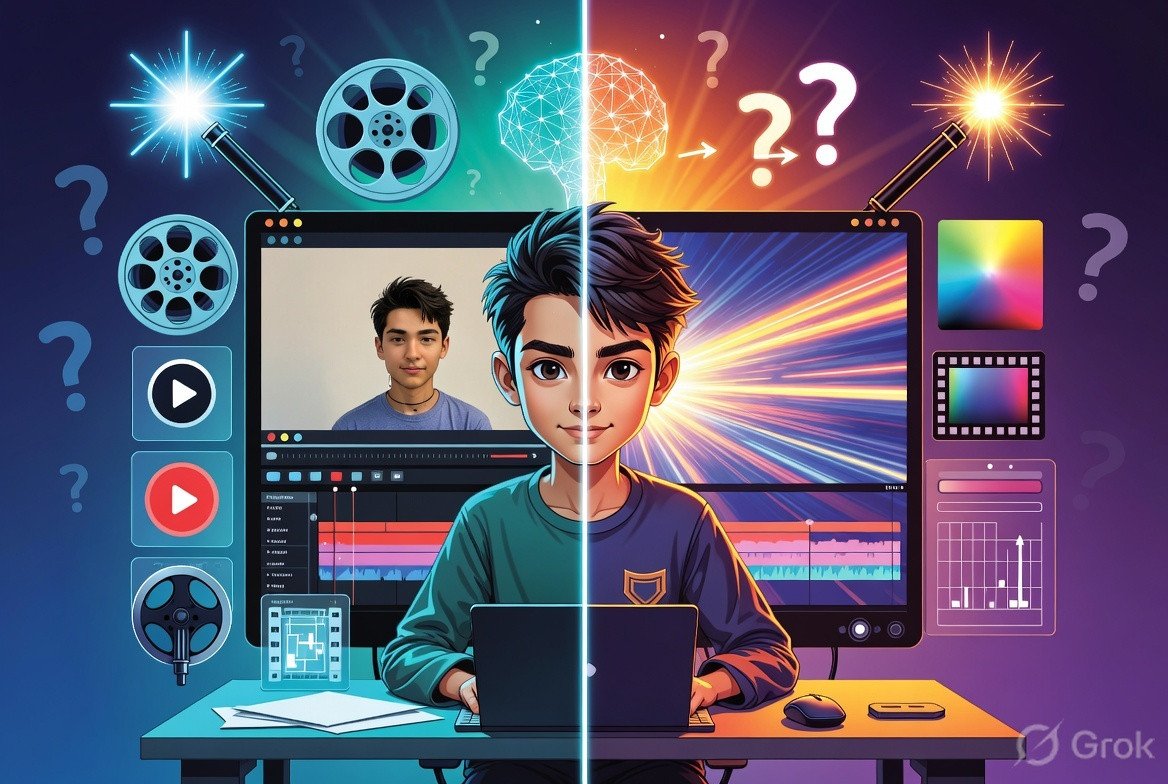
This honest experience covers auto-editing, AI captions, b-roll generation, AI transitions, and voice enhancement with real results and a practical starter toolkit for bloggers getting into video.
Let me be upfront about something before anything else.
Three months ago I could not edit a video to save my life. I am talking about the kind of person who recorded a 12-minute clip, spent four hours trying to trim it in iMovie, gave up, and posted the whole unedited thing with an apology caption.
That was me.
Then I started seeing AI video editing tools everywhere and honestly I was skeptical. Every ad made it look like you just upload a raw clip and a Hollywood-grade video comes out the other side. That is obviously not true. But after spending the last few months actually testing these tools properly, the reality is somewhere between "magic" and "still needs work," and it is genuinely more useful than I expected.
This post is everything I learned, from someone who started with zero video editing experience and no budget for a professional editor.
Why Video Felt Impossible Before AI Tools?
Before I get into the tools, let me explain why video editing specifically felt so overwhelming as a blogger.
Writing I can do. Even designing basic graphics in Canva feels manageable because there are templates and the learning curve is forgiving. Video editing felt different because the traditional tools (Premiere Pro, DaVinci Resolve, Final Cut Pro) have interfaces that look like aeroplane cockpits. There are timelines, layers, audio tracks, colour grading panels, effects libraries. For someone who just wants to make a decent talking head video for YouTube or Instagram, the gap between "I have a raw recording" and "I have a publishable video" felt enormous.
AI video editing tools are specifically trying to close that gap. Here is how well they actually do it across the five areas that matter most.
Auto-Editing: The Feature That Actually Saved Me
Auto-editing is the feature I was most sceptical about and ended up using the most.
The basic idea is that you upload your raw footage and the AI automatically identifies the best cuts, removes dead air and filler words, and produces a rough edit without you touching a timeline.
I tested this with Descript first. I recorded a 15-minute raw video where I rambled, repeated myself, said "um" probably forty times, and had three long pauses where I forgot what I was saying. I uploaded it to Descript and asked it to remove filler words and tighten the pacing.
What came back was an eight-minute version that genuinely flowed better than anything I would have produced manually, because I would have been too precious about cutting my own content. The AI has no emotional attachment to your rambling. It just cuts the parts that slow things down.
The limitation worth knowing: auto-editing tools work best on talking head videos with a single speaker. The moment you have multiple speakers, background noise, or complex scene changes, the accuracy drops noticeably. For simple blog-to-video content, it is excellent. For documentary-style editing with multiple sources, you still need significant manual work on top of the auto edit.
Tools worth testing for auto-editing: Descript, Opus Clip, and Gling AI (specifically designed for content creators who record long talking head videos).
Captions: The Biggest Immediate Win for Beginners
If there is one AI video editing feature that every creator should be using right now regardless of their editing skill level, it is AI-generated captions.
The numbers are clear on this: a significant portion of social media videos are watched without sound, particularly on LinkedIn and Facebook. Captions are not optional for anyone serious about video reach. They are table stakes.
Before AI tools, adding captions meant either paying a service, manually typing them while watching the video frame by frame, or accepting YouTube's auto-captions which are inconsistent in accuracy.
AI captioning tools like Captions.ai, CapCut's auto-caption feature, and Descript's transcription produce accurate, synced captions in minutes. Captions.ai specifically adds animated, styled captions that look like the ones you see on high-production Instagram Reels, word highlighting, emoji integration, custom fonts and colours.
I tested Captions.ai on a three-minute video I recorded. The transcription accuracy was around 95% on the first pass. I needed to fix about four words manually. The styled captions it produced genuinely elevated the video's visual quality in a way that took me ten minutes total, including the manual corrections.
For bloggers making their first videos, AI captions deliver a professional-looking result with almost no skill requirement. This is the feature to start with if you are doing nothing else.
B-Roll Generation: The Most Impressive and Most Unreliable
B-roll is the supplementary footage that cuts away from your main talking-head shot to illustrate what you are saying. In traditional video production, sourcing b-roll is either expensive (stock footage subscriptions) or time-consuming (filming it yourself).
AI b-roll generation tools like Runway, Pika, and Kling AI can now generate short video clips from text prompts. You describe what you want to see and the AI generates it. In theory, this means unlimited b-roll at zero cost beyond the tool subscription.
In practice, the results in 2026 are impressive in some areas and genuinely strange in others.
Text-to-video AI is excellent at: abstract concepts (data flowing, networks connecting, glowing interfaces), nature footage (landscapes, weather, generic outdoor scenes), and atmospheric shots that do not require specific real-world accuracy.
Text-to-video AI still struggles with: human hands (the classic AI problem that has improved but not fully resolved), specific branded objects or products, and any scene that requires accurate physical interaction between objects.
For blogger content about technology, concepts, or lifestyle topics, AI b-roll from Runway or Kling is genuinely usable today. For content about cooking, physical products, or anything requiring accurate human movement, you are better off using stock footage from Pexels or Pixabay while AI b-roll continues to improve.
The workflow I settled on: AI b-roll for abstract and atmospheric shots, Pexels for anything requiring real human activity, and my own phone footage for anything specific to my own story or experience.
AI Transitions: Where Less Is More
Transitions are the visual effects between cuts in a video. AI video editing tools now offer automatic transition suggestions and application, ranging from simple cuts and fades to more complex motion-based transitions.
CapCut and Filmora both offer AI-assisted transition features that analyse your footage and suggest transitions that match the pacing and mood of the surrounding cuts.
My honest experience: this feature is useful as a starting point and dangerous if you accept every suggestion uncritically.
AI transition tools have a tendency to over-transition, adding effects between every cut when a clean straight cut would actually look more professional. The most common mistake beginner video editors make is using too many transitions, and AI tools trained on viral social media content have absorbed that bias.
The professional standard for most YouTube and educational content is: straight cuts for 90% of edits, a simple fade for scene changes, and no motion transitions unless they serve a specific creative purpose. AI tools suggest motion transitions more than this standard warrants.
Use AI transition suggestions as a library to browse rather than as automatic decisions to accept. The tool surfaces options you might not have found manually. The judgment about whether to use them still needs to come from you.
Voice Enhancement: The Feature I Did Not Know I Needed
This one genuinely surprised me the most.
I record my videos in my home, which means background noise from fans, street sounds, and the occasional random notification sound are a constant problem. I assumed this was just something I had to live with until I could afford proper acoustic treatment.
Adobe Podcast's Enhance Speech feature (free to use) and Descript's Studio Sound feature both use AI to remove background noise and improve vocal clarity in recorded audio. I tested Adobe Podcast Enhance on a clip I recorded with my ceiling fan running and a car passing outside.
The before and after difference was significant enough that I genuinely replayed it several times because I did not believe the same microphone produced both recordings. The background noise was essentially gone and the vocal presence increased noticeably.
ElevenLabs and Resemble AI go further for creators who want to address more serious audio problems: inconsistent recording environments across multiple sessions, voice cloning for consistent narration across a series, and AI-generated voiceovers from text for creators who do not want to record their own voice at all.
For beginners, Adobe Podcast's free Enhance Speech tool is the single highest-impact free AI audio improvement available right now. It requires zero technical knowledge. You upload the audio file, click enhance, and download the improved version. The improvement on basic home recordings is consistently impressive.
The Honest Skill Gap Assessment
After three months of testing these tools, here is my honest assessment of what AI video editing can and cannot do for complete beginners:
AI genuinely closes the gap on:
- Removing filler words and dead air from talking head videos
- Adding professional-looking captions quickly
- Improving audio quality from basic home recordings
- Generating atmospheric b-roll for abstract topics
- Providing a structured starting point for editing that removes the blank timeline problem
AI does not close the gap on:
- Story structure and pacing judgment (knowing which moments matter)
- Colour grading for cinematic-looking results
- Complex multi-camera editing
- Sound design beyond basic noise removal
- The creative decisions about what makes a video compelling to watch
The tools available in 2026 mean a complete beginner can produce a clean, well-captioned, decent-sounding video without professional training. They cannot produce a truly cinematic or high-production result without developing at least foundational video judgment alongside the tool usage.
The realistic benchmark for where AI gets you as a beginner: content that looks comparable to a competent amateur, not a professional production. That is still a significant step up from where most bloggers start with video, and it is enough to build a YouTube or Reels presence that grows.
The Starter Toolkit I Would Actually Recommend
Based on three months of testing across different tools and budgets, here is what I would tell a complete beginner to start with:
- For recording and auto-editing: Descript. The free tier handles basic use cases and the learning curve is the gentlest of any serious editing tool I tested.
- For captions: Captions.ai for social media content, Descript's transcription for YouTube and longer content.
- For audio enhancement: Adobe Podcast Enhance Speech. Free. No learning curve. Use it on every recording.
- For b-roll: Pexels for human footage (free), Runway for abstract AI-generated clips (paid but affordable), your own phone for anything personal.
- For social media clips from longer content: Opus Clip. Upload a long video and it identifies the best short-form moments automatically.
Total monthly cost for the full stack at entry level: approximately ₹2,500 to ₹4,000 depending on usage volume. Significantly less than one hour of professional video editor time.
Is the Answer Yes?
The question in the title was whether beginners can create professional videos using AI tools.
The honest answer is: closer to professional than ever before, but not fully professional without developing some judgment alongside the tools.
What AI gives beginners is the ability to produce clean, watchable, well-presented video content without years of editing experience. What it does not give you is the storytelling instinct that makes video genuinely compelling. That still develops through watching good video content, studying what works, and making a lot of videos regardless of quality.
Start with the tools. Make imperfect videos. The AI handles the technical floor. You build the creative ceiling over time.
Would love to hear from others here who have tried AI video editing tools. Which features actually made a difference for you and which ones felt more like marketing than real functionality? Drop your experience below 👇
Tags: AI-Powered Video Editing, AI Video Tools, AI for Creators, AI Captions, Auto Editing AI, B-Roll Generation AI, Voice Enhancement AI, AI Audio Editing, Descript Review, CapCut AI, Adobe Podcast, Opus Clip, Professional Videos AI, AI Video for Beginners, Content Creation 2026, How to edit videos professional using AI, How to edit audio professional using AI, AI Forum, AI Webloggers